Report a New Claim
You can report a new claim from mySedgwick‘s left-hand navigation or the My Claims page.
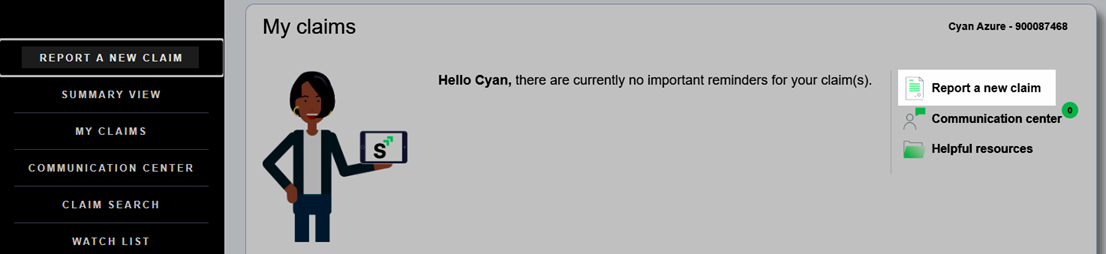
To report a claim:
- Click Report a New Claim.
- A confirmation message indicates you are about to open a new tab or window to report a claim. Click Continue to accept.
- The Report a Claim page opens, prompting you for preliminary information pertaining to your absence, illness, or injury. The first question asks you about the reason for your absence.
- After you select the type of claim or absence you’re reporting, additional questions may appear. Answer each in turn to proceed. If you make a mistake, check Clear Fields and Start Over near the bottom of the page.
- Once you have completed this section, a questionnaire prompts you for more specific information about your claim.
Navigating the Questionnaire
Required fields in each section are indicated with an asterisk (*).
A list of the questionnaire’s sections, displayed on the right side of the screen, shows where you are in the claim reporting process. Click a previous section in this list to return to it and edit it, or click Cancel to end the questionnaire without completing it.
The sections and questions may differ based on the type of claim you are reporting, whether you are reporting for yourself or someone else, and if specific information is required by your employer.
Uploading Supporting Documentation
If your employer allows it, you can also upload supporting documents and images from the Comments/Remarks section.
To upload a file, click Choose File or drag-and-drop it into the space provided, then click Upload. Successfully uploaded files are listed below this section.
Confirming or Editing Your Responses
After completing all required fields, click Next at the bottom of the questionnaire. You cannot proceed if any required fields are blank, and the alert below informs you that issues must be resolved.
Once you successfully complete all fields, a Review page displays each question and your answers.
To return to a previous section and edit a response, click Edit beside the response.
Completing Your Submission
After you have reviewed your answers, click Submit at the top or bottom of the Review page.
A confirmation page provides your claim or case number, information about related forms, and any additional information pertaining to your employer’s claim process. You can print or save this page from your browser’s menu for your records.
When done, close the tab and return to mySedgwick. You can track the progress of your claim submission from your dashboard after a short processing period.