Manager view
The Manager view page provides information about your employees and their claims. You can see who is off work, get a list of new claims, view claim details, contact claim examiners, and more.
What’s shown: Open claims and claims closed in the past 24 months are shown. Also included are future disability claims reported within the last six months and future workers’ compensation claims reported within the last 24 months.
Claim Numbers: To view a claim from here or any other page, click the claim number. Click the Watch List icon  beside a claim number to add or remove it from your Watch List.
New Messages and New Notifications
 icons display the number of unread messages in the Communication Center and outstanding notifications. Clicking an icon takes you to the relevant page or section.
- You cannot view your own claims from the Manager view page.
- You cannot view others’ claims while you are on a leave of absence. You will not have access to this page during the leave period.
The following features and sections are available from this page:
Custom Message
A message at the top of the screen, if shown, provides information specific to your employer and role.
Filter by manager
The Filter by manager field at the top of the page changes the claims displayed to the direct reports of a manager reporting to you. Enter part of a manager’s name or employee ID to view and select a list of matching managers.
When you select a manager, the page title changes to include that manager’s name (e.g., “John Smith - Manager view”) and information about that manger’s employees’ claims are shown. If Include indirect reports is selected, any of the specified managers’ indirect reports are also included.
Click  to remove a selected manager from this field.
Include indirect reports
When this option is toggled on  , up to twenty levels of indirect reports’ claims are shown. When toggled off
  , only claims of those reporting directly to you are shown.
Manager view
This section consists of these areas:
- A greeting with a list of important reminders for your awareness or action, if any exist, and quick links to common actions and features.
- Tabs listing any new claims, notifications regarding your employees’ claims, employees returning to work soon, and those off-work. You may also have a tab listing pending and past accommodations for your employees.
These sections are described in more detail below.
Greeting, Reminders, and Quick Links
The top of the Manager view section includes a greeting and a list of important reminders for your employees’ claims, if any exist.
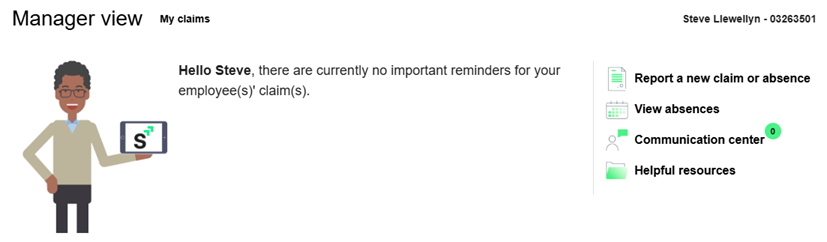
A list of quick links is also available, which vary by role. These may include:
- Report a new claim
- Communication center (also indicates the number of unread messages)
- Helpful resources
Links to additional employer-provided resources may also be available.
You can also lick the My claims link at the top of this section to visit the My claims page.
New Claims Tab
This tab displays new claims, including details about the last day worked, first day absent, or hours worked for each employee’s claim. From this section, you can confirm the information is accurate or, for disability and leave claims, update some of the information.
To view details about a claim, click the claim number.
If you have multiple claims, click Filter to access a search field to locate a claim by any displayed criteria.
Click Export  to download a .xls file containing the list of new claims.
Sort what’s displayed by clicking the Sort by option above a list and selecting the appropriate column. The arrow indicates the direction in which rows are sorted (ascending or descending); select the column again to change the orientation.
 See a list of features available in this tab and their descriptions.
 to remove it.
Notifications Tab
This tab lists any active notifications related to your employees’ claims. Depending on the status of a claim, you might be notified of changes to a claim’s status or benefits, an employee’s anticipated first date or absence or return to work date, and more.
Clicking Dismiss  removes the notification from this tab. Completing a notification’s action also removes the notification.
By default, the list is sorted by the Date column. Sort what’s displayed by clicking the Date option above a list and selecting the appropriate column. The arrow indicates the direction in which rows are sorted (ascending or descending); select the column again to change the orientation.
See a list of features available in this tab and their descriptions.
Return to Work Tab
This tab displays employee with unconfirmed return to work dates for disability and leave of absence claims.
Click Confirm  to confirm the date or update it.
Click Export to download a .xls file containing the list of return to work records.
By default, the list is sorted by the return to work date in the Detail column, in descending order. Sort what’s displayed by clicking the Detail option above a list and selecting the appropriate column. The arrow indicates the direction in which rows are sorted (ascending or descending); select the column again to change the orientation.
See a list of features available in this tab and their descriptions.
Off Work Tab
This tab displays employees who are currently off work and the dates they will be absent.
Click Actions  to report the employee’s return to work date. For workers’ compensation claims, you can also view the employee’s work restrictions.
Click Export to download a .xls file containing the list of off work employees.
By default, the list is sorted by the From date column. Sort what’s displayed by clicking the From option above a list and selecting the appropriate column. The arrow indicates the direction in which rows are sorted (ascending or descending); select the column again to change the orientation.
See a list of features available in this tab and their descriptions.
Accommodations Tab
This tab displays accommodations for your employees. Two views, Pending and View History, are available; each is described below.
Pending
Pending accommodations and job functions requiring approval are displayed by default (i.e., the Pending radio button is selected).
By default, the list is sorted by the From date column. Sort what’s displayed by clicking the From option above a list and selecting the appropriate column. The arrow indicates the direction in which rows are sorted (ascending or descending); select the column again to change the orientation.
See a list of features available from this tab when Pending accommodations are shown.
| Column | Description |
|---|---|
| Claim |
Category of claim (Accommodation Request) and the claim number. Click a claim number to open the Claim page for more information about the claim. Click |
| Name | Employee‘s name. Click the link to open the Employee’s Claims page. |
| Type | Type and subtype of the accommodation (e.g., Work Schedule Change - Additional Breaks). For pending job functions when there is no open accommodation, this column displays Job Functions Approval. |
| Begin | Date the accommodation begins. This field is blank for pending job functions. |
| End | Date the accommodation ends. This field is blank for pending job functions. |
| Actions |
Click the Actions icon
Clicking an option opens the Accommodation requests page and expands the relevant section. |
View History
Click the View History radio button to view past accommodations.
Communication center
The Communication center enables you to communicate directly with the examiner assigned to your employees’ open claims.
Click Visit to open the Communication center page.
Helpful resources
The Helpful Resources section provides links to various features of the Helpful resources page, such as the Learning Center, Links, and more. For more information, see the Helpful resources page topic.