My claims
The My claims page provides a list of your claims, notifications about your claims, and more. A message at the top of the page may also provide useful information. You can return to this page at any time by clicking My Claims on the navigation menu.
To view a claim from here or any other page, click the claim number.
The following sections are available from this page:
Welcome Message
A message at the top of the screen, if shown, introduces you to features available in mySedgwick. It may also provide useful information related to your claims.
My claims
This section consists of three areas:
- A greeting with a list of important reminders for your awareness or action, if any exist, and quick links to common actions and features
- Your open claims and any claims closed within the last 24 months
- Tabs listing any payments or notifications for your claims
These sections are described in more detail below.
Sort what’s displayed in the claims list or Payments and Notifications tabs by clicking the Sort by option above a list and selecting the appropriate column. The arrow indicates the direction in which rows are sorted (ascending or descending); select the column again to change the orientation.
Greeting, Reminders, and Quick Links
The top of the My claims section includes a greeting and a list of important reminders for your claims, if any exist.
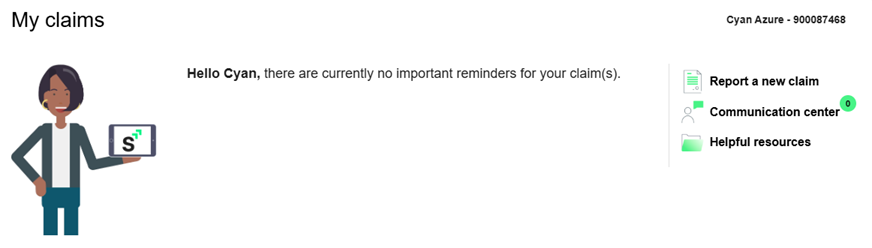
A list of quick links is also available, which vary by role. These may include:
- Plan a leave
- Report a new claim
- Report an absence (for leave claims with intermittent absences)
- Communication center
- Helpful resources
Links to additional employer-provided resources may also be available.
If you are a manager with access to your direct reports’ claims, click the Manager View link at the top of this section to visit the Manager view page.
Claim List
The middle portion of the My claims section provides a list of your open claims or those closed within the past 24 months. Future workers’ compensation and disability claims may also be shown. This section is not displayed if you have no available claims.

To view details about a claim, click the claim number. Click the Actions menu icon to access additional features related to the claim.
If you have multiple claims, click Filter to access a search field to locate a claim by any displayed criteria.
 See a list of features available in this section and their descriptions.
 to access various actions for the claim. The list below includes possible actions; click an option’s name to view that feature’s help topic:
Payment and Notification Tabs
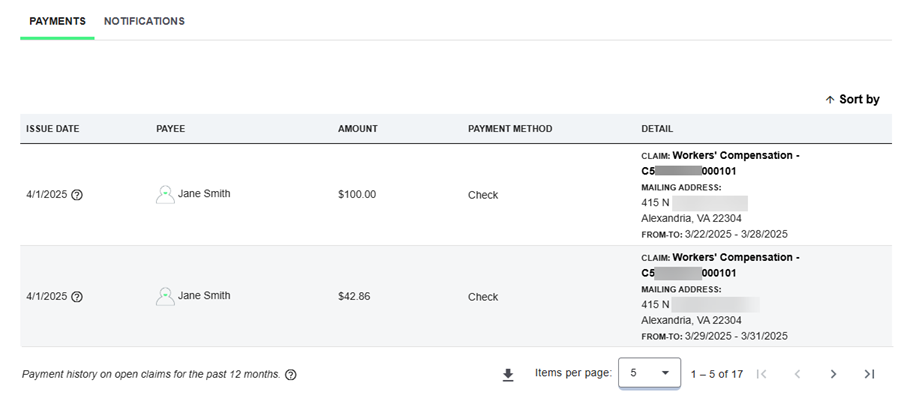
The last portion of the My claims section includes two tabs providing more information about your claims: Payments and Notifications.
Payments Tab
This tab lists payments issued for your disability or workers’ compensation claim within the past 12 months. It is only displayed if allowed by your employer.
See a list of features available in this section and their descriptions.
Click Export  to download a .csv file containing the details listed in this section.
Notifications Tab
This tab lists any active notifications related to your claim. Depending on the status of your claim and the features available to you, you might be notified to set up direct deposit for a workers’ compensation claim, complete a Medicare Consent form, provide Medicare beneficiary information, opt-in to email and text messages for your open claims, complete an authorization for release of information, or confirm your return to work date.
You can dismiss a notification from this list by clicking Dismiss  . Completing a notification’s action also removes the notification.
Claims calendar
This section provides a calendar view of your time off work for all applicable claims. It also displays approved work accommodation periods, if applicable.
Note: This section is not displayed to managers viewing their employees’ claims.
The current month is displayed by default, with today’s date highlighted with a blue border. The status of each absence is displayed based on their color. A legend at the bottom of the section describes each status color.
Note: On the morning of an absence for continuous leave cases, the calendar displays the day’s absence status as Pending if the daily balancing process for that case has not yet finished. Once this process is complete (typically during the first six hours of the day), the absence status is updated to reflect the final evaluation (e.g., Approved or Denied).
If there are no off work periods associated with your claims, this section is collapsed by default. Click  to expand the section.
Actions you can take from this section include:
- To view the previous or next period, click the left and right arrows at the top of the section. Click Today to return to the current month or week.
- To view a week at a time, click Week. To switch back to a month-by-month view, click Month.
- Click Export to download a .csv file containing absences for a specified period of time.
- Click an absence to open an Event pop-up providing details about the absence’s claim. The information displayed varies by claim type. See a list of information available in this window.
Closed leave claims are not displayed on the calendar. Only open claims or disability and workers’ compensation claims closed within the past two years are included. If accommodation requests are available, only accepted requests are shown on the calendar.
Communication center
The Communication Center enables you to communicate directly with the examiner assigned to your open claims.
Click View to open the Communication Center page and view or start conversations with your examiner.
Helpful resources
The Helpful Resources section provides links to various features of the Helpful resources page, such as the Learning Center, Links, and more. For more information, see the Helpful resources page topic.
Leave balance summary
This section, displayed if your employer enlists Sedgwick to manage your open leave of absence claims, provides a graphical representation of the amount of time used, pending, and available for each leave policy for which you are eligible under the Family and Medical Leave Act, State Leave Laws, Military Leave, or other company leave policies.